Run a task
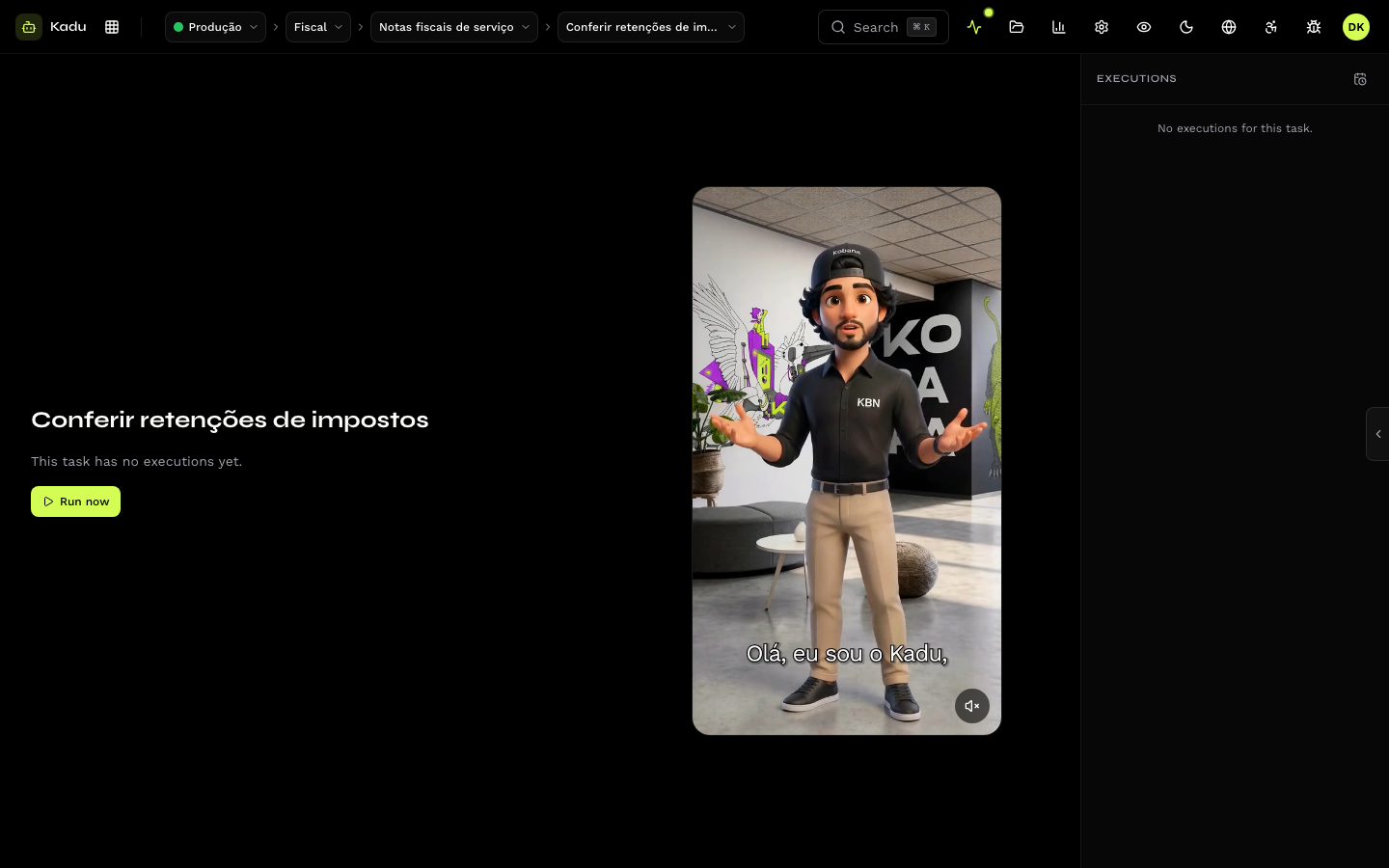
With the task selected in the top bar, click Run now.
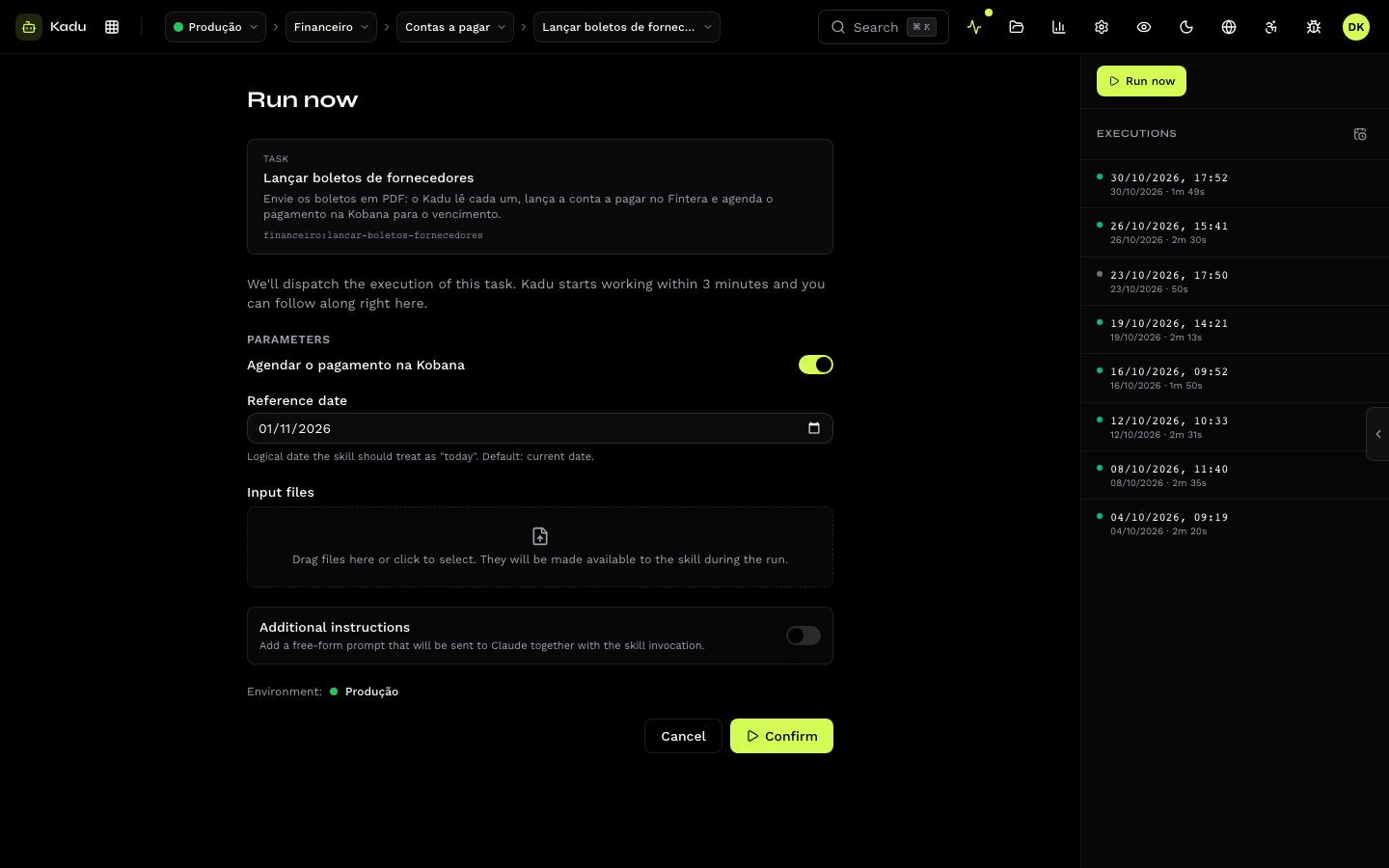
What the modal asks for
| Field | When it appears | What for |
|---|---|---|
| Environment | always | where the execution runs. It comes from the top bar; with no environment chosen, the modal asks for one. |
| Reference date | always | the date the skill uses as "today". Default: the current date. Useful to reprocess a past day. |
| Parameters | when the task declares parameters_schema | the form is built from the schema: required fields, numbers, lists (one item per line) and JSON. |
| Input files | when the task accepts files (accepts_input_files) | drag or select files, up to 100 MB each. They are available to the skill during the execution. |
| Additional instructions | optional | free text sent to the agent along with the skill. E.g., "today process only the payments from Heliotek". |
Pre-check
Before enabling the Confirm button, the console checks the environment:
- Missing secrets: if the task requires a secret with no value in the environment, the modal lists which ones, with the Configure secrets shortcut.
- Queue: if the task already has executions ahead, the modal says how many and the button becomes Add to queue. The new execution starts on its own when the previous ones finish.
- Plan and cap: without a plan, or with the monthly cap reached, the run is blocked. See Plan and costs.
Parameters that do not pass parameters_schema are rejected before the
execution is created.
After confirming
The execution appears at the top of the task's list and the agent starts within 3 minutes. A notice on the screen follows the run until the execution starts. Follow it in Follow an execution.
Resolve pending
In the Pending tab of an execution, the Resolve pending button triggers a special execution: instead of running the skill from scratch, the agent revisits the open pending items and closes the ones that can already be resolved. See Pending items.